macOS app
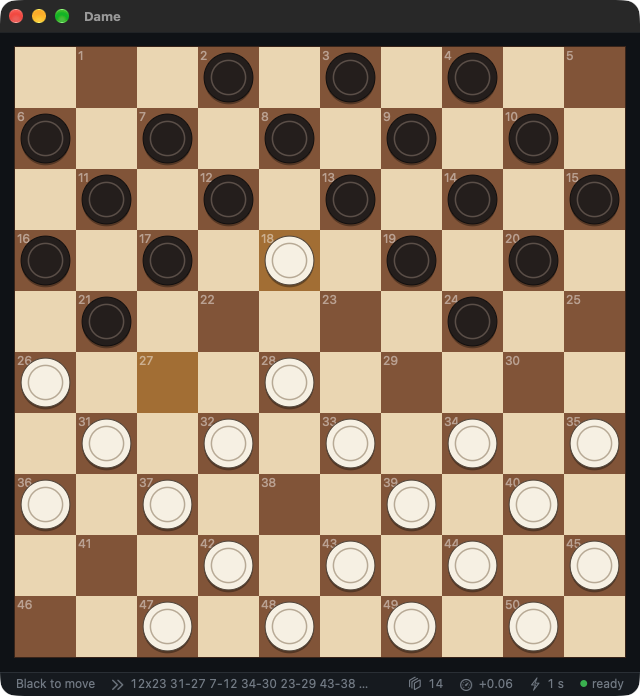
Dame.app is a native macOS front end, written in Rust against AppKit with
objc2. It draws the board, checks your
moves with the dame crate, and runs the engine as a separate process that it
talks to over the Hub protocol, so a
busy or crashing engine never freezes the window.
It needs a Mac with Apple silicon and macOS 12 or later.
Install
Every GitHub release
has a disk image, Dame-<version>.dmg, for Macs with Apple silicon. Open it
and drag Dame.app onto Applications.
The app is signed ad hoc, not with an Apple Developer ID, so macOS blocks it the first time. Open it once, then choose Open Anyway under System Settings → Privacy & Security. Or clear the download flag in a terminal:
Build and run
Build the app from a checkout:
scripts/dmg-macos.sh packs the bundle into target/release/Dame-<version>.dmg,
as the release does. The app supports Apple silicon only; on an Intel Mac,
bundle-macos.sh still builds it for local use.
The bundle holds both binaries: dame-macos (the app) and dame (the
engine). During development, cargo run --release -p dame-macos works too,
once cargo build --release -p dame-cli has put dame next to it.
The app icon is drawn in crates/dame-macos/assets/icon.svg; after editing
it, scripts/macos-icon.sh renders icon.png (needs ImageMagick).
The app looks for the engine in this order:
- the
DAME_ENGINEenvironment variable, which may name any Hub engine (it is started with the argumenthub); damenext to the app's executable;dameon thePATH.
Without an engine the app still works as a board for two players.
Opening book
Choose File → Open Opening Book… (⌘O) to pick a book: a PDN file of games, whose first ten moves the engine follows (see Opening book). The app restarts the engine with the book and keeps the game; from then on the engine plays book moves while the position is in the book. The app remembers the book across launches. Clear Opening Book turns it off.
To get started, build ~/draughts/mobydam.pdn from Moby Dam's games as shown
in Getting games, then open it here; in the file
dialog, ⇧⌘G lets you type the path.
While a book is open, the status bar shows a book icon with the book depth: how many plies (half-moves) of each game the engine follows. Its tooltip names the book. Click it, or use File → Book Depth, to choose 8 to 40 plies; the engine restarts to rebuild the book, and the app remembers the depth.
The app always tells the engine which book and depth to use, so DAME_BOOK
and DAME_BOOK_PLIES have no effect on it. If the file cannot be loaded, the
status bar shows the engine's error.
Playing
Click a piece, then its destination; legal destinations are marked with a dot. When two captures start and end on the same squares, the status bar asks you to click one of the pieces to take, which picks the route. You can also click that piece before the destination.
The status bar at the bottom shows whose turn it is and the first six moves of the engine's expected line from the current position on the left (fast-forward icon; the tooltip shows all of it). On the right are the search depth (layers icon), the score in men from White's point of view (gauge icon), the book depth (book icon, click to change), the time per move (lightning icon) and the engine's state (green: ready, yellow: thinking or analysing). Rest the pointer on an item for an explanation; the engine's name and version are in the tooltip of its state. Dame → About Dame shows the app version and links to the project on GitHub.
| Menu | Command | Shortcut | |
|---|---|---|---|
| File | Open Opening Book… | ⌘O | the engine plays from this book; see Opening book |
| File | Clear Opening Book | the engine searches every move | |
| File | Book Depth | 8 to 40 plies of each book game; also by clicking the book icon in the status bar | |
| Game | New Game | ⌘N | |
| Game | Move Now | ⌘E | stops the engine's search, or lets it move for the side to move |
| Game | Reload Engine | ⌘R | restarts the engine process and keeps the game, e.g. after rebuilding dame |
| Game | Engine Plays … | Black, White, both, or nobody (two players) | |
| Game | … Seconds per Move | 1, 3, 10 or 30 seconds per engine move | |
| Edit | Take Back Move | ⌘Z | takes back your last move and the engine's reply |
| Edit | Copy Position | ⌘C | the position as FEN |
| Edit | Copy Moves | ⇧⌘C | the game in PDN move notation |
| Edit | Paste Position | ⌘V | sets up a FEN or Hub position |
| View | Flip Board | ⌘F | |
| View | Fast Forward | ⌘→ | plays the next move of the expected line on the board; see Fast forward |
| View | Step Back | ⌘← | takes back one move of the preview |
| View | Back to Game | Esc | leaves the preview |
Fast forward
To see where a move leads, fast forward along the engine's expected line: choose View → Fast Forward (⌘→) or click the expected line in the status bar. Each step plays one more move of the line on the board, without touching the game. Step Back (⌘←) goes back one move, and Back to Game (Esc) returns to the game.
While you preview, the board has a yellow frame and the status bar starts with Preview +3: …, how many moves it is ahead of the game and those moves, followed by the moves still ahead. The squares of the earlier moves are tinted, the last move is highlighted, and red rings mark the pieces it took. Clicks on the board are ignored. Any change to the game (a move by the engine, New Game, Take Back Move, Paste Position, Reload Engine) ends the preview.
The line is the engine's latest one for the current position, such as the continuation it expects after its own move. When there is none, for example after a book move or when nobody has searched the position yet, the status bar shows only the fast-forward icon: fast forward then lets the engine analyse the position for a second, ignoring the opening book, and steps into the line it finds. The engine plays nothing during that analysis.